
JetBackup lets you save a copy of an existing backup to your computer. You can download an account backup, website files or an individual database. Downloading a backup does not roll your live website back.
1. Open JetBackup
Log in to your Dynamic Servers cPanel account. In the Files section, click JetBackup 5. You can also find it using cPanel’s search box.
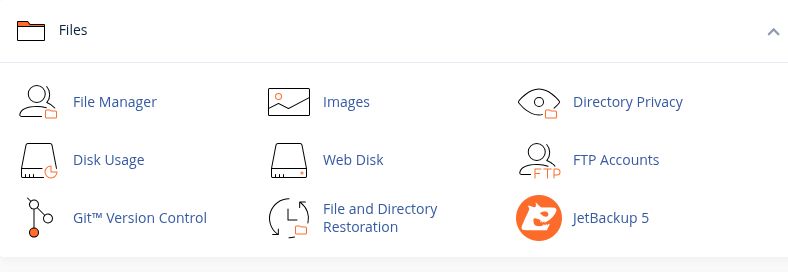 Open JetBackup 5 from the Files section in cPanel.
2. Choose what to download
Use the dashboard shortcuts, or open Restore & Download and select the appropriate tab:
- Full Account: the available account backup items, such as files, databases and email.
- Home Directory: files and folders. A website’s database is separate.
- Databases: one or more databases. Include the corresponding database users if you also need their backed-up configuration.
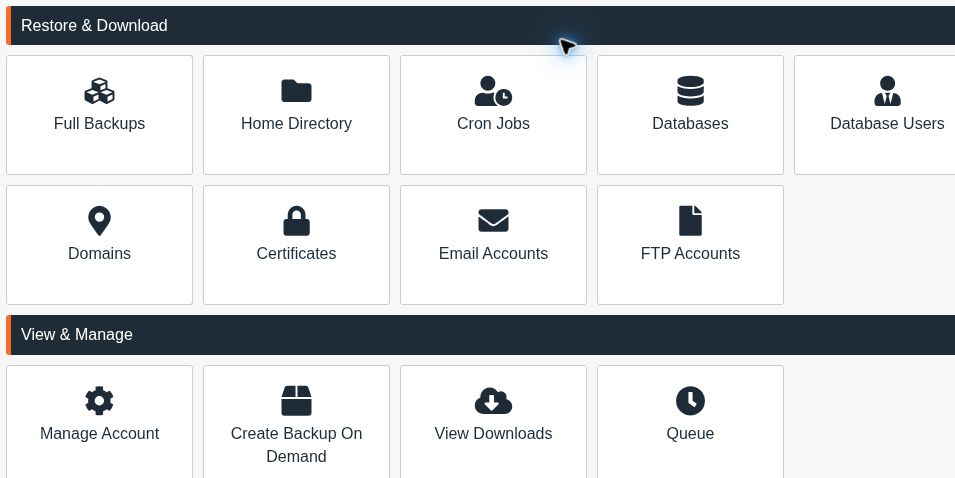 Choose the type of backup you want to save.
3. Select the backup date and items
For a full account or home directory backup, click the required backup row. Check its date and time. For a database, select the correct database and use Choose Other Backup if you need an older copy.
To download particular files, select a home directory backup, click Change Files Selection, browse to the required files or folders and tick their checkboxes. Click Select Files to keep that selection.
For a WordPress website, keep both the website files and its database. Choose matching restore points when you intend to recover the whole site.
4. Prepare the download
Click Download. Review the download summary and remove any items you do not need. Check that it contains the intended backup date and data, then click Download Selected Items.
 Choose Download to prepare an archive for your computer.
5. Save the completed archive
Open Queue and wait for the download preparation task to show Completed. Then open Downloads and use the download control beside the completed archive to save it to your computer. The browser may ask where to save the file.
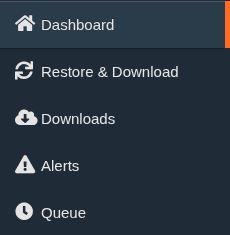 Queue shows progress; Downloads contains archives that are ready to save.
The archive is normally a .tar.gz file. Confirm that the browser download finishes, and keep the file somewhere secure: it may contain website data, email and account information.
Prepared downloads are temporary and can be removed according to the server’s limits. Save your copy promptly. A JetBackup archive may need additional steps to restore on another server; contact support before relying on it for a migration.
If you need a fresh backup first
Use Create Backup On Demand before your changes, wait for it to finish, then select the new restore point. Creating a restore point and downloading an archive are separate steps.
Need help?
If the backup you need is missing, or a task fails, open a support ticket. Include the website concerned, the backup date and time, what you need to recover, and any error message. Never send passwords or a full backup archive in a ticket.
Screenshots show JetBackup 5.4 in cPanel. Account details and file lists are excluded for privacy. Available dates and options can vary between accounts.
