
Webmail lets you read and send messages in a browser. These steps apply to a mailbox hosted in your cPanel account. Microsoft 365 and Google Workspace mailboxes use their own provider’s webmail.
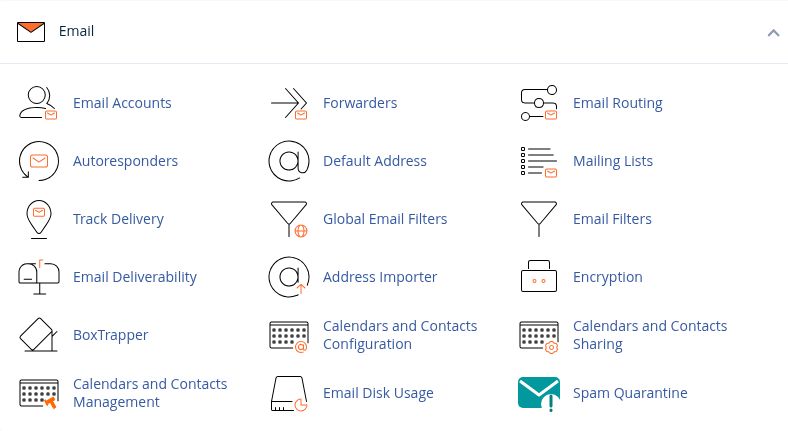 Email tools. Account details are excluded from this view.
Steps
- Open the Webmail address supplied in your hosting details. Alternatively, sign into cPanel and open Email Accounts.
- Find the required mailbox and select Check Email. Opening it from cPanel may sign you in automatically.
- If a login screen appears, enter the full email address and the mailbox password. The mailbox password may differ from your client-area and cPanel passwords.
- If the Webmail home screen appears, choose Open for Roundcube. Use the Inbox and Compose controls to read and send mail.
- Send a test to an external address and reply to it. Sign out when you finish, particularly on a shared device.
Cannot sign in?
Check the full address for typing errors and make sure you are using the mailbox password. The hosting account owner can change it under Email Accounts → Manage. If Webmail works but your email app does not, check the app’s server names, secure ports and saved password.
If messages are missing, check Junk and the appropriate server’s quarantine: Gravity’s bespoke Spam Quarantine or Uranium’s SpamExperts. A successful Webmail login does not prove that every message has been delivered.
Related help
- How to Change an Email Account Password in cPanel
- My Emails Are Not Arriving or Sending: What to Check
- How to Fix a Full Email Mailbox
Further information: Official documentation.
Need help? open a support ticket. Include the affected domain and exact error, but never your password.
