
Before pointing visitors at a new hosting account, prepare the website and confirm how the domain and email are managed. A domain registration alone does not create a website.
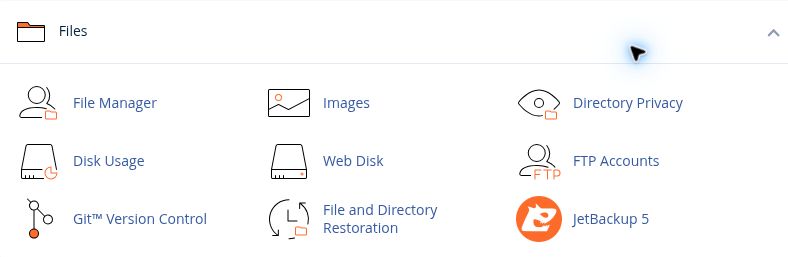 Files tools. Account details are excluded from this view.
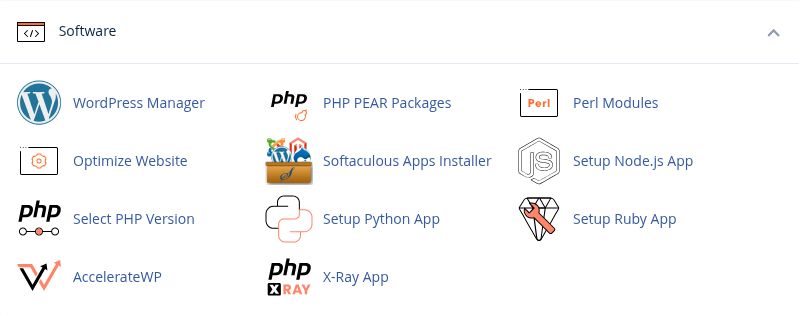 Software tools. Account details are excluded from this view.
Steps
- Open your active hosting service in the client area and log into cPanel. Check that the correct domain appears under Domains.
- Choose how to build the site. For WordPress, follow our existing Softaculous installation guide. For an existing site, arrange a migration before changing DNS.
- For a manual upload, use the domain’s Document Root shown under Domains. The main domain commonly uses public_html; additional domains can use another folder. Upload into the correct location with File Manager or a secure file transfer client.
- If the site uses a database, create or migrate its database and database user, then update the application’s connection settings. A file upload alone does not migrate database content.
- Test the site, then update the website’s DNS at its authoritative DNS provider using the IP supplied for your account. Preserve existing email records unless you are also moving email.
- Check HTTPS, navigation, images, forms and checkout where applicable. Test the site on a mobile device and confirm a current backup is available.
Before launch
DNS changes and email moves should be planned together. Keep the old hosting active until the website and email have been tested on the new service. If you are unsure which records to change, open a support ticket with your domain and explain where email is currently hosted.
Related help
- How to Point Your Domain to Your Hosting
- How to Upload and Manage Website Files in cPanel
- How to Request a Website and Email Migration
- JetBackup: creating, downloading and restoring backups
Need help? open a support ticket. Include the affected domain and exact error, but never your password.
