
Pointing the website at your hosting does not always require changing nameservers. Keeping the current DNS provider and updating only website records can preserve email and other services.
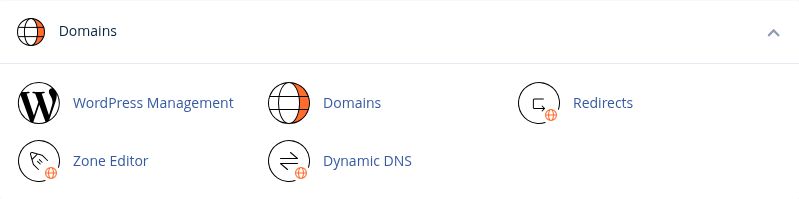 Domains tools. Account details are excluded from this view.
Steps
- Prepare and test the new website first. Confirm that the domain is added to the correct cPanel account and note its Document Root under Domains.
- Get the website IP or target hostname from your hosting welcome details or support. Use the values for your own account.
- At the domain’s authoritative DNS provider, save the existing records. Update the website’s root A record to the supplied IPv4 address.
- Check the www record. Set it to the target required by your setup, commonly a CNAME pointing to the main domain. Review any AAAA record too; an old IPv6 address can send some visitors to the wrong server.
- Keep MX records and the hostnames they depend on pointing to the intended email service. If MX points to the domain itself, changing that domain’s A record can also change email delivery: ask support to plan this first.
- After DNS caches update, test both the bare domain and www over HTTPS. Check pages, forms and email before cancelling old hosting.
Using a proxy or CDN?
Services such as Cloudflare can show proxy addresses in public DNS. The origin setting at that provider still needs to point to the correct hosting server. Keep valid HTTPS on the origin as well as the visitor-facing service.
If the website is still wrong after the expected caching period, compare the published records with the intended values and contact support with the domain and what you see.
Related help
- How to Add or Edit DNS Records in cPanel
- Understanding DNS Propagation and Why Changes Take Time
- My Website Says It Is Not Secure: How to Check SSL
Need help? open a support ticket. Include the affected domain and exact error, but never your password.
