
This guide explains how to create an offline email archive in Microsoft Outlook and automatically move emails older than 13 months to a local archive file stored on your computer.
Archiving older mail helps keep your mailbox small, improves performance, and prevents mailbox quota issues.
Open AutoArchive settings
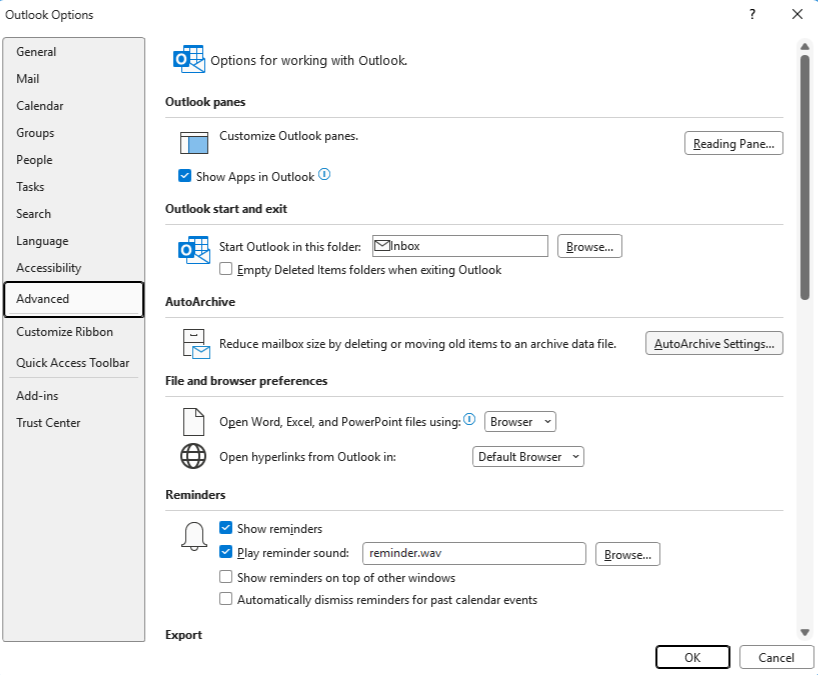
- Open Outlook
- Click File
- Select Options
- Click Advanced
- Select AutoArchive Settings
Configure AutoArchive for 13 months
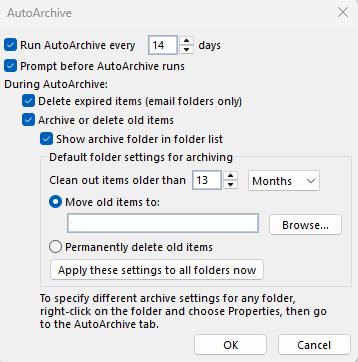
- Run AutoArchive every 14 days
- Tick Archive or delete old items
- Set Clean out items older than: 13 months
- Select Move old items to and choose archive location
Apply archive settings to folders
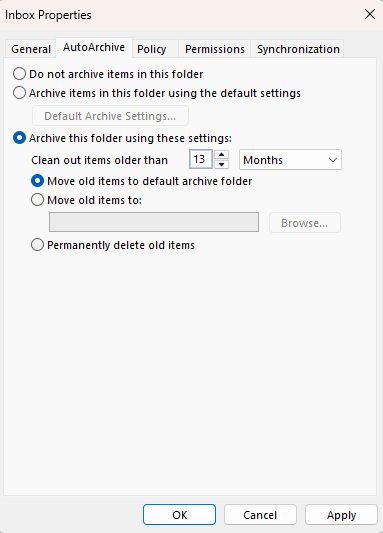
- Right-click Inbox
- Select Properties
- Open the AutoArchive tab
- Select Archive this folder using these settings
- Set 13 months
- Click OK
Repeat for Sent Items and any other important folders.
Run a manual archive immediately (optional)
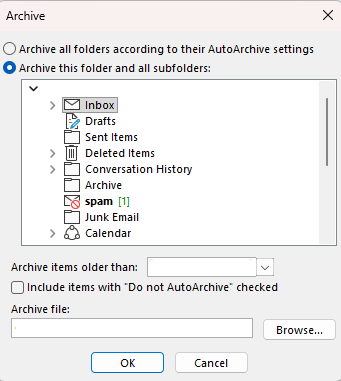
- Click File
- Select Tools
- Click Clean Up Old Items
- Select the folder
- Choose items older than 13 months
- Click OK
Archive file location
Documents\Outlook Files\Archive.pst
Important: This archive is stored locally on your computer.
Dynamic Servers recommendations
- Archive regularly to prevent mailbox quota issues
- Ensure your computer is backed up if the archive contains important mail
- Do not store PST archives on network drives
- Keep archive files below ~20GB for best performance
If you need assistance with mailbox management or storage upgrades, please contact Dynamic Servers support.