
Use an encrypted file transfer connection and the credentials for the correct hosting account. FTPS and SFTP are different protocols; an FTP account does not automatically provide SSH/SFTP access.
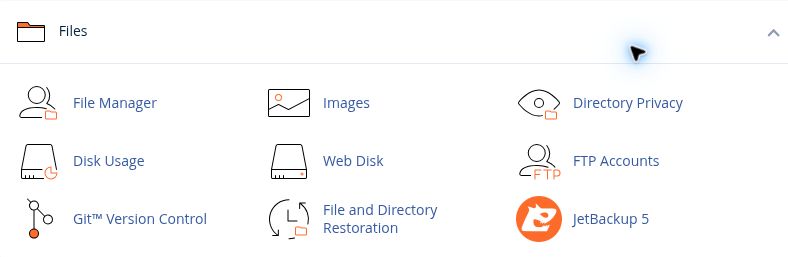 Files tools. Account details are excluded from this view.
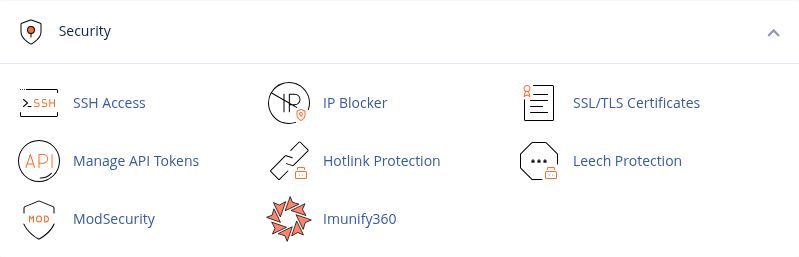 Security tools. Account details are excluded from this view.
Steps
- Install a trusted file transfer client such as FileZilla or Cyberduck from its official source. Create a new saved connection or site entry.
- For FTPS, get the server hostname and FTP username from your hosting details or cPanel → FTP Accounts → Configure FTP Client, where offered. Select FTP with explicit TLS, normally on port 21.
- Enter that FTP account’s username and password. Use the exact username supplied: an additional FTP account may include a domain suffix.
- Check that the certificate matches the server hostname. If it does not, stop and ask support rather than accepting an unexpected certificate.
- For SFTP, first confirm that SSH/SFTP is enabled for your hosting service. Use the SSH hostname, username, authentication method and port supplied by support; do not assume an FTP-only login will work.
- After connecting, check the remote folder against the domain’s Document Root in cPanel. Upload a small intended file, then verify it. Review overwrites before replacing existing content.
Connection problems
For an authentication error, confirm the account and password. For an FTPS directory-listing timeout, check passive-mode settings and contact support with the exact error. Do not switch to unencrypted FTP as a workaround.
Use a restricted FTP account where suitable when sharing access with a developer, and remove access when it is no longer needed. Never send hosting passwords in a normal support message.
Related help
Further information: Official documentation.
Need help? open a support ticket. Include the affected domain and exact error, but never your password.
