
PHP changes can affect every site using that account’s selected runtime. Test compatibility and have a recovery plan before changing a live website. The version shown in a screenshot is an example, not a recommended target.
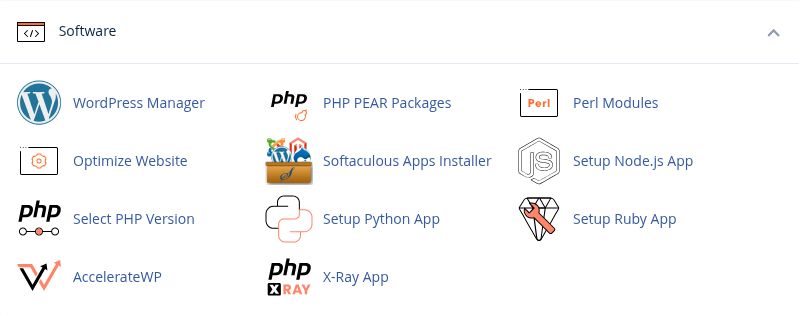 Software tools. Account details are excluded from this view.
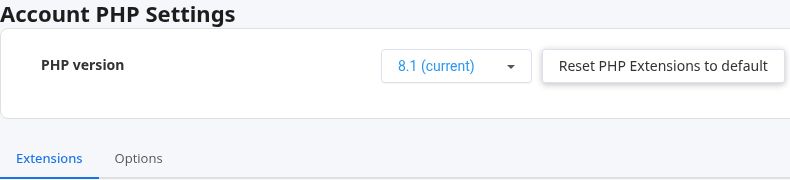 Php selector. Account details are excluded from this view.
Steps
- Check the application, plugin and theme requirements. Choose a supported PHP version compatible with them and test on staging where possible.
- Record the current version, enabled extensions and relevant settings. Confirm a recent files-and-database backup exists.
- Open cPanel → Select PHP Version. Review the Account PHP Settings screen and confirm the scope before changing it. Other servers may offer a different PHP-management tool.
- Select the required version and use the interface’s apply or set-current control if shown. Do not use Reset PHP Extensions to default unless you intend to reset that extension selection.
- Review required extensions under Extensions. Under Options, change only the settings your application needs. Some controls save immediately; check the result after each change.
- Test the website, admin login, forms and checkout. If it fails, restore the recorded version and settings, then investigate compatibility with the developer.
Understanding limits
PHP memory_limit is a per-process setting, while the hosting plan’s memory allowance is an account limit. Increasing one does not increase the other. Uploads can also be limited by upload_max_filesize, post_max_size and application settings.
Keep display_errors off on public production sites. If the selected version appears to have no effect, a per-domain override may apply; ask support before changing several tools at once.
Related help
- How to Troubleshoot a WordPress Critical Error
- How to Check CPU, Memory and Other Hosting Resource Limits
Further information: Official documentation.
Need help? open a support ticket. Include the affected domain and exact error, but never your password.
