
A critical error usually means WordPress encountered a fatal PHP problem. Record when it began and what changed immediately beforehand, such as an update, new plugin or PHP-version change.
 File manager toolbar. Account details are excluded from this view.
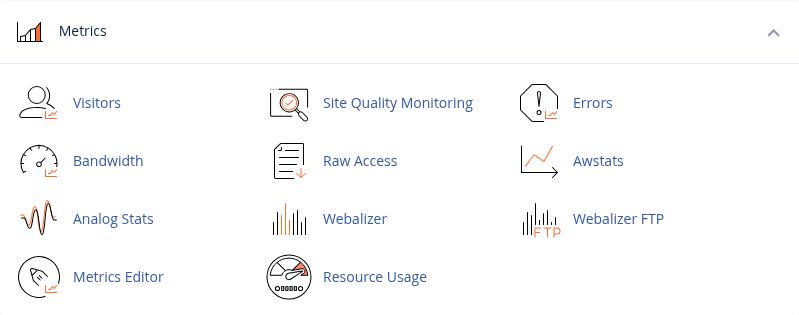 Metrics tools. Account details are excluded from this view.
Steps
- Check the WordPress administrator email for a recovery-mode message. If available, use its private recovery link and review the plugin or theme named in the error.
- If you can sign in, deactivate the recently changed component and retest. Do not deactivate unrelated plugins in bulk on a live shop or booking site without understanding the impact.
- If you cannot access WordPress, first make or confirm a backup. In cPanel File Manager, locate the correct site’s document root and its plugin directory. If you can identify the faulty plugin, temporarily rename only that plugin’s folder to disable it. Record the old name so the change can be reversed.
- Reload the site and admin page. If access returns, keep the faulty component disabled while checking its compatibility or obtaining a corrected version from the vendor.
- Review cPanel’s Errors or the application’s private error log with your developer. Do not publish stack traces or enable error display for visitors.
- If the cause is unclear, stop making changes and contact support or your developer with the exact error, affected URL, start time and recent changes.
Use a targeted recovery
Do not delete plugin folders, reset the database or reinstall WordPress as a first step. Renaming a required shop or security plugin can affect important functions, so involve your developer when necessary.
A complete backup restore may be appropriate, but restoring the database also rolls back newer content, orders and submissions. Agree how to preserve live data before using that approach.
Related help
- How to Upload and Manage Website Files in cPanel
- How to Change Your PHP Version and Settings in cPanel
- My Website Is Down: What to Check First
- JetBackup: creating, downloading and restoring backups
Further information: Official documentation.
Need help? open a support ticket. Include the affected domain and exact error, but never your password.
