
A WordPress login is separate from your Dynamic Servers client-area and cPanel logins. Use the reset process for the correct website rather than changing a hosting password.
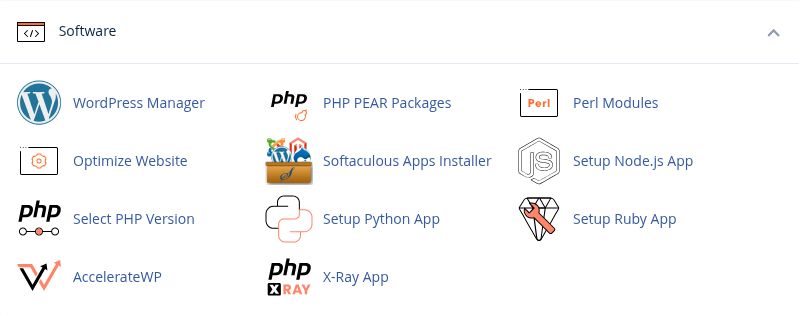 Software tools. Account details are excluded from this view.
Steps
- Open your website’s WordPress login page, normally the site address followed by /wp-login.php. Some security plugins use a customised login address.
- Select Lost your password?. Enter the username or email address attached to your WordPress account and request the reset email.
- Check that mailbox, including Junk and the appropriate spam quarantine. Follow the reset link promptly and choose a strong, unique password.
- Sign into WordPress with the new password and save it securely. If a password manager still offers the old value, update its saved entry.
- If you are already signed in, you can change your password through Users → Profile → Account Management, then save the profile.
- If the email does not arrive or the account address is no longer accessible, contact your website administrator or open a support ticket through the hosting account. We may need to verify ownership before helping with recovery.
Keep recovery safe
Do not share a reset link or password in a ticket. Avoid editing database password values unless you understand the recovery method and have a current backup. An incorrect database edit can lock out users or damage the wrong site.
If you did not request a reset, do not follow unexpected links. Visit the website’s known login address directly and review account security if you suspect unauthorised access.
Related help
Further information: Official documentation.
Need help? open a support ticket. Include the affected domain and exact error, but never your password.
