
If your website or email has outgrown its current allowance, we can review a suitable upgrade. Identify which limit is causing the problem before choosing a larger plan.
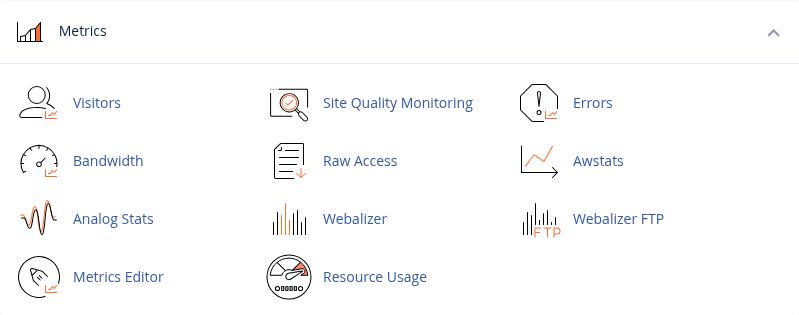 Metrics tools. Account details are excluded from this view.
 Client shortcuts. Account details are excluded from this view.
Steps
- Open the hosting service in My Services and review the current plan and billing details.
- Check cPanel Disk Usage or Resource Usage according to the issue. Note whether it is storage, CPU, memory, process limits or another requirement.
- If the service offers Upgrade/Downgrade, review the available choices and the price shown before placing an order. Availability depends on the product.
- If there is no upgrade option, open a support ticket under the appropriate billing or support department. Include the domain, current plan, limit reached and what the site needs to do.
- Ask us to confirm the new allowances, price, billing cycle, any prorated charge and whether a server move or interruption is involved.
- After an agreed upgrade is completed, check the service details and cPanel allowances, then retest the workload that was failing.
Make the upgrade fit the problem
More disk space does not automatically add CPU or memory. Raising PHP’s memory setting does not increase the hosting account’s resource limit. An inefficient plugin or repeated background job may still need attention after an upgrade.
Do not order a second hosting service simply to upgrade an existing one unless we have agreed that approach. Contact support if you are unsure which options preserve the current website and email.
Related help
- How to Check CPU, Memory and Other Hosting Resource Limits
- How to Check and Reduce Your Hosting Disk Usage
- How to View, Download and Pay Your Invoices
Further information: Official documentation.
Need help? open a support ticket. Include the affected domain and exact error, but never your password.
