
JetBackup provides restore points for supported data in your cPanel hosting account. This guide explains what to check before relying on a backup, choosing a date or starting a recovery.
Scheduled backups and on-demand backups
Supported Dynamic Servers shared hosting accounts include daily JetBackup backups with thirty daily restore points. A new account may show fewer dates, and the available backups shown for your account are what you can select for recovery.
An on-demand backup is a restore point you request, for example before a website update. Wait for it to finish and confirm it appears before making changes. Its request limits and retention may differ from scheduled backups.
A prepared download is an archive generated from an existing backup. It is temporary on the server until you save it to your own device; generating a download does not create a new restore point.
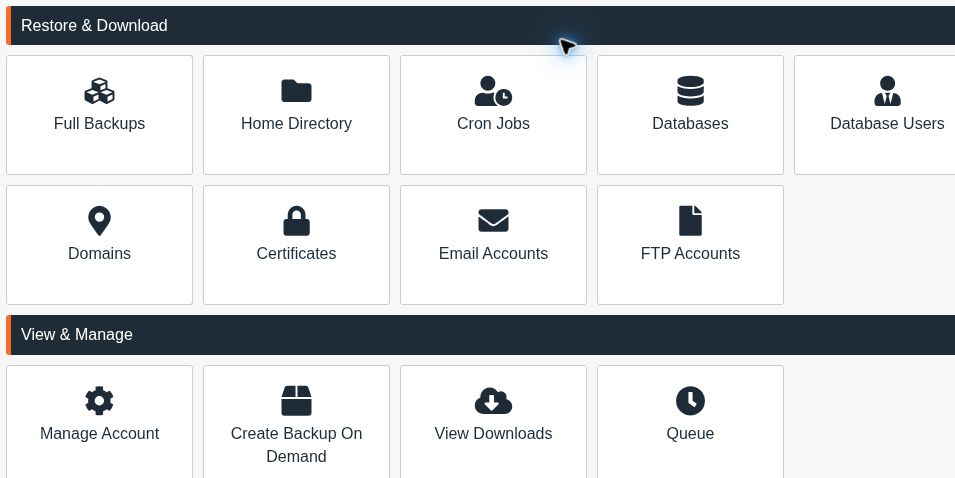 The dashboard separates backup types from on-demand backup and download actions.
What each backup type contains
| Backup type | Use it for |
|---|---|
| Home Directory | Website files, uploads and other included files or folders. Database contents are separate. |
| Databases | Backed-up database contents, such as WordPress content, settings and orders. |
| Database Users | Backed-up database user configuration. Selecting a database does not automatically select its users. |
| Email Accounts | Available mailbox backup items for email hosted in this cPanel account. |
| Full Account | The available account backup items you have permission to manage. Review the summary rather than assuming every item is included. |
| Other tabs | Available backed-up cron jobs, domains or DNS zones, certificates and FTP account configuration. |
What is not automatically covered
A backup can contain only the included data that existed at the time it was taken. Changes made afterwards are not in that restore point. Excluded files and unsuccessful or incomplete backup tasks can affect what is available; ask support about any account-specific exclusions.
Data hosted outside this cPanel account needs its own recovery arrangements. Examples include Microsoft 365 or Google Workspace mailboxes, a database on another server, files kept only on a laptop, and data inside an external booking or payment service.
A backup is not proof that a website is malware-free. Choose a clean date and fix the cause of a compromise before returning the site to use.
How to choose a restore point
- Work out when the problem first happened.
- Select a backup from before that time; check both the date and displayed time.
- For a complete WordPress recovery, use files and database from the same backup run wherever possible.
- Consider what newer data a rollback would remove. Ask support before rolling back an active shop or booking system.
- Check that the required item is present before changing or deleting live data.
Older restore points are removed as backups rotate. Do not assume an unlisted date or a backup after a service ends will remain available.
Does a backup use my hosting disk space?
Dynamic Servers’ platform backups are kept separately from your hosting allowance. Archives created by website backup plugins or other tools and stored inside your account still use its disk space. Download important copies to a secure location outside the account.
Check completion and keep an independent copy
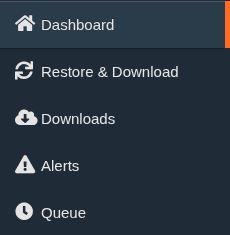 Check Queue for task progress and Downloads for archives you have prepared.
Review the task details and verify the data after recovery. Keep independent copies of commercially important data, check that downloaded archives finish transferring, and periodically confirm you can use your recovery process.
Related guides
Open a support ticket if you need help choosing a restore point or interpreting an error. Include the affected website or mailbox, the backup date and time, the task type and the exact error message. Never include passwords or a full backup archive in a ticket.
Screenshots show JetBackup 5.4 in cPanel. Account details, database names, file names and paths are excluded for privacy. Available dates and options can vary between accounts.
