
Use this guide when a JetBackup backup, restore or download is waiting, has failed, or does not contain what you expected.
1. Check what kind of task you requested
Create Backup On Demand requests a new restore point. Restore puts backed-up data back into the account. Download prepares an archive, which you must then save from Downloads. These are different operations.
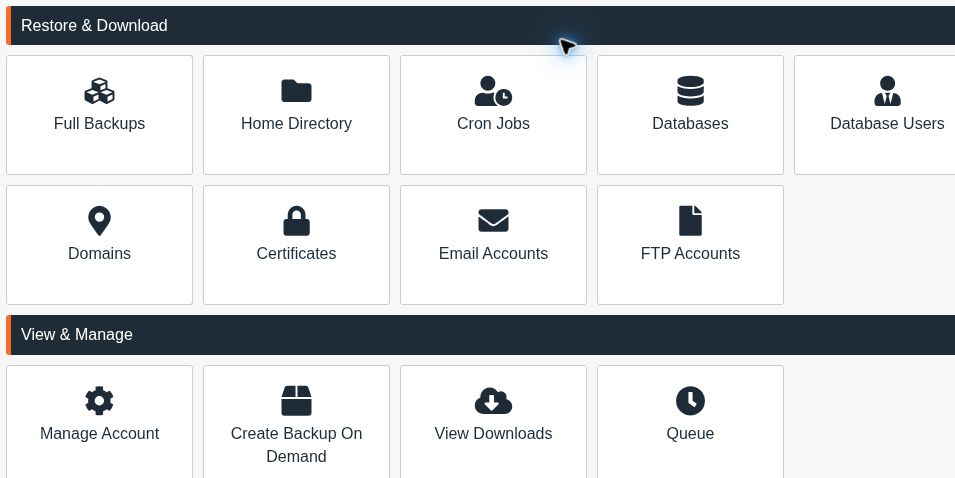 Choose the task you need. Creating a restore point does not download an archive.
2. Check Queue and the task details
Open JetBackup in cPanel and choose Queue from the menu. Find the relevant task by its type and time. Open its details or individual group items where available.
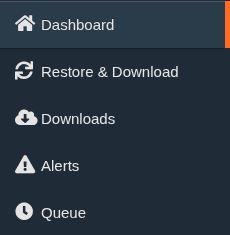 Queue shows processing status; Alerts and Downloads provide additional information.
| Status | What to do |
|---|---|
| Pending | The task is waiting. Give it time and avoid submitting duplicates. |
| Processing | The task is running. Large mailboxes or websites can take longer; size alone does not establish a fault. |
| Completed | Review any item details or warnings, then check the recovered data or prepared download. |
| Failed | Read and copy the exact error. Correct only issues you understand, or contact support before retrying. |
| Cancelled | The request was stopped. Do not assume all selected items were restored. |
If a task appears unchanged for an unusually long time, refresh the view once and contact support with the task details. There is no single completion time that applies to every account. Avoid stopping a restore to try to make it run faster.
The backup or date I need is missing
- Check that you opened the correct cPanel account and backup type.
- Use the page controls for older full or home directory backups. For databases or mailboxes, use Choose Other Backup.
- Confirm that the file, database or mailbox existed when that backup was taken.
- Remember that older restore points rotate out, new accounts have fewer dates, and exclusions or unsuccessful backup jobs can affect availability.
Do not delete live data on the assumption that an unlisted backup can be recovered. Ask support to check availability first.
The restore completed, but my website still looks wrong
Check the selected date, website folder and database. Clear the relevant website and CDN caches. A whole WordPress site may need both its files and database recovered from the same restore point. A merge option gives live data precedence and may not replace the content you intended to roll back.
If only one part of a combined recovery completed, or the site reports a database connection error, contact support before attempting another restore.
The download has not appeared on my computer
First wait for archive preparation to complete in Queue. Then open Downloads and click the archive’s download control. Confirm that your browser completes the file transfer and check its downloads list or selected save folder.
If the prepared archive is no longer listed, it may have expired or been removed according to the server’s download limits. Prepare it again only if needed. If the browser transfer fails, check your device’s free storage and network connection before retrying.
A button is missing or a limit message appears
Available controls depend on account permissions, backup contents and server limits. Read the message and contact support if the expected feature is unavailable. Do not change server settings or follow root-level repair commands intended for administrators.
What to include in a support ticket
Open a support ticket if you need help choosing a restore point or interpreting an error. Include the affected website or mailbox, the backup date and time, the task type and the exact error message. Never include passwords or a full backup archive in a ticket.
If you attach a screenshot, include the error and status while hiding passwords, private file paths and unrelated customer information.
Related guides
Screenshots show JetBackup 5.4 in cPanel. Account details, database names, file names and paths are excluded for privacy. Available dates and options can vary between accounts.
