
This guide explains how to recover one WordPress website using its files and database in JetBackup. It applies to a site already hosted in your cPanel account; moving a backup to another server is a separate process.
A database restore can remove changes made after the chosen backup. This includes WooCommerce orders, bookings, customer accounts and form entries. If you need to preserve newer transactions, contact support before starting.
1. Decide whether a complete restore is needed
A deleted document or one damaged plugin file may only need a file restore. A complete WordPress recovery normally needs the website files and the database from a matching restore point. Restoring all of cPanel can affect other websites, mailboxes and settings, so choose only this website’s data.
If the website was compromised, contact support first. Restoring a backup does not remove the vulnerability that caused the incident, and a recent backup may already contain the problem.
2. Prepare the website for recovery
- Save a current copy of the files and database before changing them.
- Identify the website’s document root in cPanel. The main site is commonly in public_html; additional domains may use other folders.
- Identify its database from DB_NAME in the site’s wp-config.php. Keep that file and its passwords private.
- Choose a maintenance period and stop visitors, checkout, bookings, imports and integrations from writing new data during recovery. Do not rely on a WordPress maintenance plugin remaining active while its files are being restored; ask support about keeping access restricted if needed.
3. Choose the matching restore point
Log in to your Dynamic Servers cPanel account. In Files, choose JetBackup 5, or use the cPanel search box.
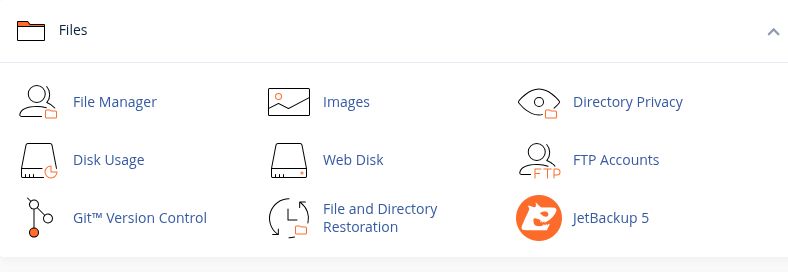 Open JetBackup 5 from cPanel’s Files section.
Find a backup from before the problem. Check both Home Directory and Databases have the required date and time. Prefer items from the same backup run. If a matching pair is missing, ask support before combining different restore points.
4. Restore this website’s files
Open Home Directory, select the backup row and click Change Files Selection. Browse to the website’s folder and select the required files and folders. Click Select Files.
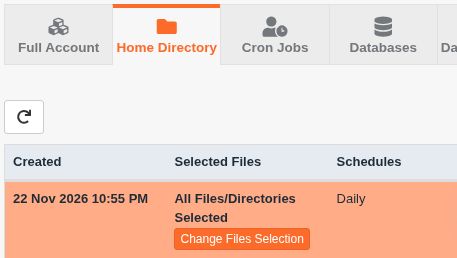 Limit the selection to the affected website; avoid restoring unrelated home directory data.
Click Restore, review the summary and any conditions, then click Restore Selected Items. Check Queue until that file restore completes.
If a merge option is offered, live data takes precedence. That may not give the rollback you intend. Also, do not assume that a restore removes every extra file created after the backup. Contact support if you need an exact replacement or a clean recovery after malware.
5. Restore the website’s database
Open Databases, select the correct database and use Choose Other Backup to select the matching restore point. If the associated database users also need recovering, select those under Database Users and check they are included in the summary.
 Database contents and database user configuration are separate backup items.
Click Restore, check the database, date and any selected users, then click Restore Selected Items. Wait for completion before allowing the site to accept new activity.
6. Check both restore tasks
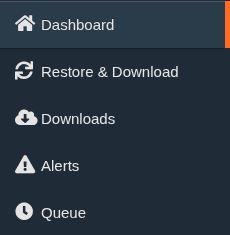 Use Queue to check the file restore and database restore separately.
Confirm that both tasks completed and review any warnings. If one task failed, keep the site closed to new transactions and contact support. Do not repeatedly queue further restores while another recovery is running.
7. Test before reopening
- Clear the relevant WordPress, LiteSpeed and CDN caches.
- Test the homepage, several internal pages, images and administrator login.
- Check forms and bookings. For a shop, verify products, order history and checkout using an appropriate test method.
- Check that scheduled jobs, integrations and notifications are behaving as expected. Avoid triggering duplicate emails or fulfilment actions.
- Resolve the original fault and apply suitable updates before reopening.
A database rollback does not reverse payments or changes made in external systems. Reconcile newer orders, payments and bookings separately with support where needed.
Related guides
Open a support ticket if you need help choosing a restore point or interpreting an error. Include the affected website or mailbox, the backup date and time, the task type and the exact error message. Never include passwords or a full backup archive in a ticket.
Screenshots show JetBackup 5.4 in cPanel. Account details, database names, file names and paths are excluded for privacy. Available dates and options can vary between accounts.
