
A forwarder sends incoming messages for one address to another. It does not copy historic messages, create a separate destination mailbox or change your mail app’s outgoing identity.
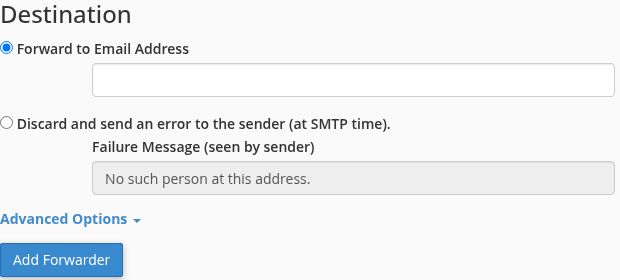 Forwarder destination. Account details are excluded from this view.
Steps
- Log into cPanel and open Forwarders. Select Add Forwarder.
- Enter the part before the @ sign in Address to Forward and choose the correct domain.
- Under Destination, leave Forward to Email Address selected. Enter the full destination email address and check it carefully.
- Select Add Forwarder. Wait for confirmation and review the source and destination on the forwarder list.
- Send a test from an unrelated external address to the original address. Check that it arrives at the destination, including its Junk folder.
- If the original address also has a local mailbox, check that mailbox’s storage regularly: forwarding does not prevent its local copy from using space.
Avoid loops and delivery problems
Do not forward address A to B if B already forwards back to A. Forwarding to a third-party provider can also be affected by that provider’s spam and authentication checks; a forwarder is not a guarantee of delivery.
If you need to send replies as the original address, configure a real mailbox and its authenticated SMTP settings in your mail app. For Microsoft 365 or Google Workspace email, create forwarding rules in the service that actually receives the domain’s mail.
Related help
- How to Create an Email Account in cPanel
- My Emails Are Not Arriving or Sending: What to Check
- How to Fix a Full Email Mailbox
Further information: Official documentation.
Need help? open a support ticket. Include the affected domain and exact error, but never your password.
