
Use cPanel to add a mailbox with its own login and storage. These steps are for email hosted in your cPanel account. Mailboxes hosted by Microsoft 365 or Google Workspace are managed in that provider’s administration panel.
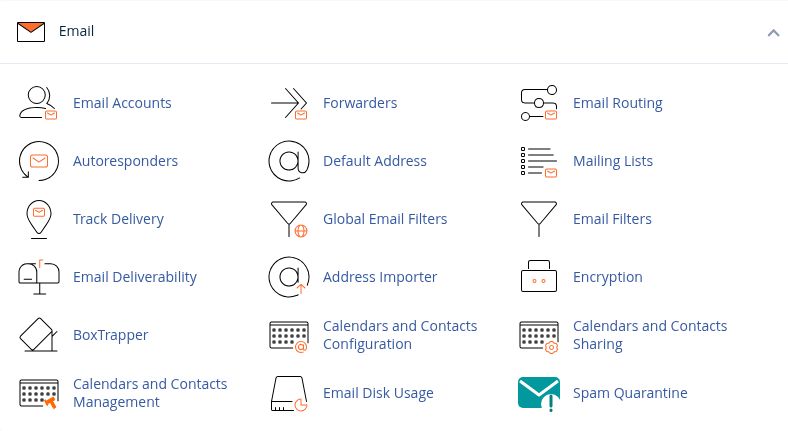 Email tools. Account details are excluded from this view.
 Mailbox password controls. Account details are excluded from this view.
 Mailbox storage controls. Account details are excluded from this view.
Steps
- Log into cPanel and choose Email Accounts in the Email section. Select Create.
- Select the required Domain if more than one is available. Enter the part before the @ sign in Username. Check the complete resulting address.
- Choose Set password now and create a strong, unique password. Save it in a password manager. Alternatively, use the alternate-address login-link option if offered and appropriate.
- Expand Optional Settings → Edit Settings. Set a suitable storage allowance within your hosting plan. Unlimited mailbox storage, where offered, does not remove the hosting account’s overall limit.
- Review the details and choose Create. Wait for confirmation that the mailbox was created.
- Return to Email Accounts. Use Check Email to test Webmail, then Connect Devices for the secure settings needed in an email app.
Check delivery
Send a message to an external address and ask for a reply. If the new mailbox does not receive mail, check where your domain’s MX records send email. Creating a local mailbox does not change those records.
If the Create option is unavailable or the account limit is reached, open a support ticket to discuss the allowance. Do not delete a mailbox to free space unless you have saved the messages you need.
Related help
- How to Find Your Secure IMAP and SMTP Settings
- How to Log into Webmail
- How to Change an Email Account Password in cPanel
Further information: Official documentation.
Need help? open a support ticket. Include the affected domain and exact error, but never your password.
