
An autoresponder sends an automatic reply when someone emails an address. Keep a real mailbox or appropriate forwarder for that address so the incoming messages are still handled.
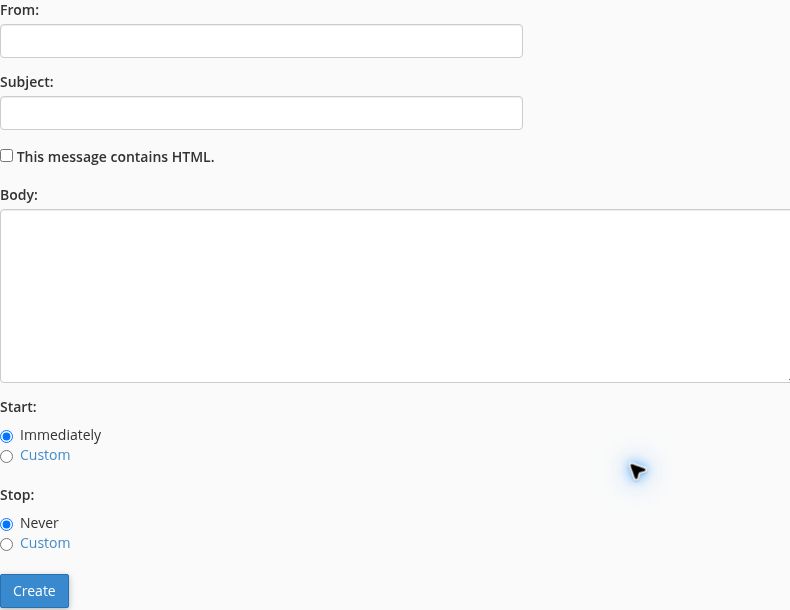 Autoresponder message. Account details are excluded from this view.
Steps
- Open cPanel → Autoresponders → Add Autoresponder. Leave the character set as utf-8 unless you have a specific requirement.
- Set an Interval in hours, such as 24, to limit repeated replies to the same sender. Zero replies to every eligible message and can create unnecessary responses.
- Enter the email username and select the correct domain. Set the display name in From and a clear Subject.
- Write the message in Body. Give a return date and an alternative contact if appropriate. Leave This message contains HTML unticked for a plain-text message.
- Set Start and Stop times. Use a custom stop time for a holiday response and check the time zone used by the control panel.
- Review the address and dates, then select Create. Send a test from an external address. Edit or remove the autoresponder when it is no longer needed.
Keep the message simple
Avoid publishing sensitive travel details or information about unattended premises. Some automated or spam messages do not receive an automatic response, so repeated tests from one sender may not produce repeated replies.
These steps apply to cPanel-hosted mail. Set out-of-office replies within Microsoft 365 or Google Workspace when those services host the mailbox.
Related help
- How to Create an Email Account in cPanel
- How to Create an Email Forwarder in cPanel
- How to Log into Webmail
Further information: Official documentation.
Need help? open a support ticket. Include the affected domain and exact error, but never your password.
