
Add a DMARC DNS record, start with a monitoring policy and check your legitimate email senders before enforcing stricter rules.
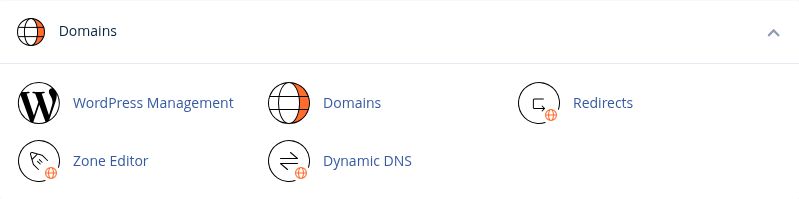 Use Zone Editor when cPanel hosts your authoritative DNS. Identifying domain and account details are excluded.
Check authentication first
DMARC lets a domain publish a policy for email that fails its authentication checks. It uses SPF and DKIM together with alignment to the domain shown in the message’s From address. A message can pass DMARC through an aligned SPF pass or an aligned DKIM pass; simply publishing all three record types does not guarantee that every sender passes.
List every legitimate sender, including website forms, newsletters, invoices and customer-management systems. Set up SPF and DKIM for the services you use, test their messages and keep a copy of any existing DMARC record. Do not overwrite an established enforcement policy with a weaker example from this guide.
Choose a starting policy
For a domain without an existing DMARC policy, a monitoring policy is a useful starting point:
v=DMARC1; p=noneThis requests no DMARC-specific enforcement action. It does not prevent a recipient from rejecting or classifying a message for other reasons, and it does not by itself stop spoofed messages.
For aggregate reports, you can add a rua destination:
v=DMARC1; p=none; rua=mailto:dmarc-reports@example.comThe address above is an example. Replace it with a working report mailbox or an authorised reporting service that you control. Reports can arrive as XML attachments and need suitable analysis. A reporting destination on another domain may require extra DNS authorisation. Avoid adding forensic-reporting options without understanding their privacy implications.
Publish the TXT record
- Find the provider hosting your domain’s authoritative DNS. If this is cPanel, open Zone Editor → Manage for the domain.
- Look for an existing TXT record at
_dmarc. Edit the existing policy only after reviewing it; otherwise add a TXT record. - Use the hostname
_dmarc.example.com, replacing the example domain with yours. Some editors expect only_dmarcand append the domain themselves. - Enter the policy text as the record value, following the editor’s format. Keep one DMARC policy record at that name.
- Save the change and confirm the publicly visible record after DNS caches update.
Monitor before enforcing
Test fresh messages from each legitimate sender and review DMARC results and aggregate reports. Pay attention to the From domain and the domain used by the passing SPF or DKIM result. A delivery test from one mailbox does not test your website or newsletter service.
Only consider p=quarantine or p=reject after you have checked legitimate sending sources and planned the rollout. A strict policy applied too early can disrupt genuine mail. Review subdomains and external services as part of that decision.
If you need help, send us your domain and a list of the services that send mail for it. Do not send passwords or private DKIM keys.
Related help
- How to Add or Edit DNS Records in cPanel
- Understanding DNS Propagation and Why Changes Take Time
- My Emails Are Not Arriving or Sending: What to Check
Further information: Google Workspace: Set up DMARC · cPanel Zone Editor.
Need help? Open a support ticket with the affected domain and exact error. Never include your password.
