
Add or update your domain’s SPF record without losing permission for existing email services to send on your behalf.
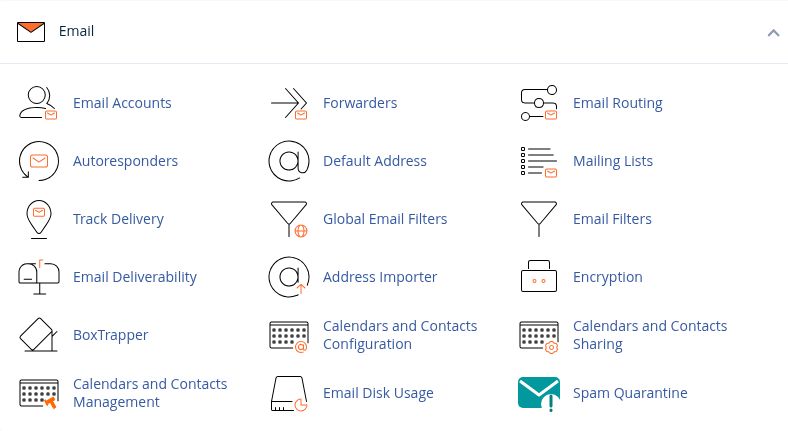 Open Email Deliverability from cPanel’s Email tools. Account details are excluded from this screenshot.
Before changing SPF
SPF lists the systems permitted to send email for a domain. Your website, mailbox provider, newsletter platform and invoicing software may all use different senders. Make a list of the services you use and keep a copy of the existing DNS record before editing it.
Check where your domain’s authoritative DNS is hosted. If its nameservers point to another provider, make the final change there. A record saved only in cPanel will not affect public DNS when another provider is authoritative.
Find the correct record
- Open cPanel for the hosting service and search for Email Deliverability.
- Choose Manage beside the intended domain. Review the SPF information and suggested record for email sent by this hosting server.
- If you use Microsoft 365, Google Workspace, a bulk email service or a separate outgoing relay, obtain its current SPF instructions too. Do not assume the cPanel suggestion covers every sender.
There is no single SPF value suitable for every Dynamic Servers customer. Use the values for your actual sending services; ask us to check the record if you are unsure how your outgoing mail is routed.
Add or edit the DNS TXT record
- Open Zone Editor in cPanel and choose Manage beside the domain, or use the equivalent DNS editor at your authoritative provider.
- Filter for TXT records and find the value beginning
v=spf1at the relevant hostname, usually the main domain. - Edit that record. If none exists, add a TXT record using the hostname format required by the editor.
- Combine the authorised senders into one SPF record for that hostname. Do not add a second
v=spf1record alongside an existing one or paste two complete SPF strings together. - Save the change and record the previous value so you can review or reverse the edit if needed.
Check the result
Allow for DNS caching, then check the publicly visible TXT record and send test messages from each legitimate service. Inspect the received message’s authentication results for SPF. An SPF pass alone does not guarantee inbox delivery, and DMARC also considers whether the authenticated domain aligns with the visible From address.
If you see a permanent SPF error, check for duplicate records, syntax errors and too many DNS lookups. SPF permits a limited number of DNS-querying mechanisms; adding more services can exceed that limit. Do not remove senders or change the final all policy merely to silence a warning without checking the consequences.
Send support the domain, the service that fails and the exact error. Never send passwords or private keys.
Related help
- How to Add or Edit DNS Records in cPanel
- Understanding DNS Propagation and Why Changes Take Time
- How to Connect Microsoft 365 Email Without Moving Your Website
- How to Connect Google Workspace Email Without Moving Your Website
- My Emails Are Not Arriving or Sending: What to Check
Further information: cPanel Email Deliverability · Microsoft SPF guidance.
Need help? Open a support ticket with the affected domain and exact error. Never include your password.
