
Create a separate subdomain in cPanel, select its website directory and check DNS and SSL before putting content online.
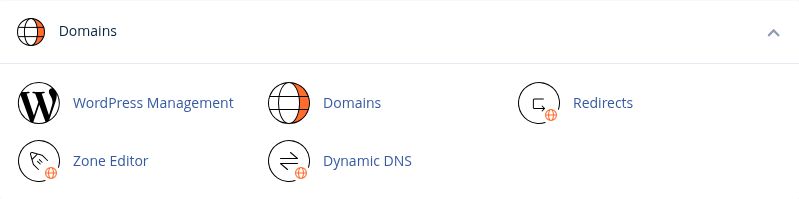 Use Domains to create a subdomain. The screenshot is cropped to exclude account information.
Choose the address and purpose
A subdomain is an address such as shop.example.com or staging.example.com. The examples in this guide are fictional. A subdomain can run a separate website, but creating it does not install WordPress or copy an existing site.
Check that your hosting package permits the additional domain and that the address is not already used for email, another application or a service such as webmail. Confirm where DNS for the main domain is hosted.
Create it through Domains
- Open Domains in cPanel and select Create A New Domain. Current cPanel versions manage subdomains here rather than through a separate Subdomains screen.
- If a domain-type choice is shown, select the option for a domain you control rather than a temporary domain.
- Enter the complete subdomain, for example
shop.example.com, using your own domain. - For a separate website, clear Share document root if that option is shown.
- Review the document root. Choose an appropriate separate directory and make sure it is not the live website’s existing directory. Some applications place access rules in parent directories, so ask us if you are unsure where the new site should live.
- Review the address and directory, then submit the form.
If the form rejects the address, check the package limit, spelling and whether the domain already exists on this or another account. Contact support rather than changing unrelated domain settings.
Check public DNS
cPanel may create local DNS records when you add the subdomain. They only control public resolution when the authoritative DNS service uses those records.
If DNS is hosted elsewhere, add the appropriate A record there using the confirmed hosting IP address, and check whether an AAAA record is also present. An incorrect IPv6 record can send some visitors to the wrong server. Use the DNS editor’s required hostname format and avoid guessing an IP address from another customer’s setup.
Allow for DNS caching. You normally do not need to change the entire domain’s nameservers just to add one subdomain.
Add content and SSL
Upload the separate website to the document root you selected, or install the intended application into that destination. Check the destination again before using an installer so that you do not overwrite the main site.
Once the hostname reaches the correct service, check SSL/TLS Status and allow any eligible automatic certificate process to complete. Open the final HTTPS address and test the expected content. A default page or directory listing error usually means the application or index file is missing, the directory is wrong or DNS points elsewhere.
Restrict access if this is a private test site. If your aim is to clone a WordPress website, use the staging guide after preparing the destination and checking the application’s requirements.
Related help
- How to Add or Edit DNS Records in cPanel
- How to Point Your Domain to Your Hosting
- How to Upload and Manage Website Files in cPanel
- My Website Says It Is Not Secure: How to Check SSL
Further information: cPanel: Create a New Domain · cPanel: Create a subdomain.
Need help? Open a support ticket with the affected domain and exact error. Never include your password.
