
Check missing WordPress pages, refresh existing permalink rules and identify when a 404 needs help from your developer or hosting support.
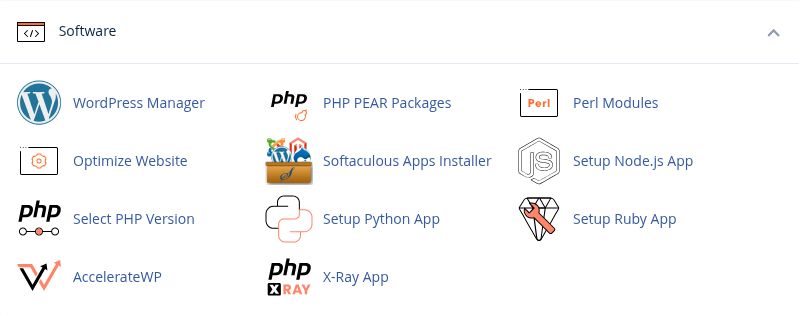 Open the correct WordPress installation through the available WordPress tools. Account and installation details are excluded.
Identify which addresses fail
A 404 means the requested address was not found. Start with the exact failing URL and test the homepage, another post and the WordPress dashboard. Note whether the error appears inside your usual theme or on a plain server error page.
If the whole domain opens the wrong website or nothing responds, use the website-down and DNS guides first. If you see a 403, 500 or database connection error, record that actual message; the checks below address a different problem.
Check the content and link
- Sign into WordPress and locate the intended post or page.
- Check that it is published and publicly visible, and that it has not been moved to the bin or saved only as a draft.
- Use its current View link and compare that address with the failing URL. Check the slug, parent page, spelling and any recently changed domain or folder.
- If only an old address fails after a deliberate move, update internal links and create a suitable redirect to the current equivalent page. Do not redirect every missing address to the homepage.
Refresh the existing permalink rules
If the homepage works but many posts or pages return 404, the rewrite rules may need refreshing. Take a current backup before changing configuration.
- Open Settings → Permalinks.
- Make a note of the selected structure, including any custom structure and category or tag bases.
- Leave those values unchanged and choose Save Changes.
- Read any message about rewrite rules or configuration permissions. If WordPress cannot save the required rules, send the message to support or your developer.
- Clear relevant WordPress, server and CDN caches and retest several affected pages in a private window.
Changing the structure just to test can change public URLs. Do not replace the entire .htaccess file with a generic example: it may contain rules needed by security tools, redirects, caching or another application.
If only certain content still fails
Custom post types, language plugins, shops and page builders can add their own routing. Check whether the problem began after an update or a plugin change. Test suspected conflicts on a restricted staging copy where possible, especially on a live shop or booking site.
For a website installed in a subdirectory or a multisite network, configuration is more specific. Ask the developer to review the site address, installation path and rewrite rules rather than moving files or renaming directories at random.
When contacting us, provide the failing URL, a working URL, the time the problem began and any recent changes. Include the exact status and a screenshot of the error with personal information removed. Do not send administrator passwords.
Related help
- My Website Is Down: What to Check First
- My Website Changes Are Not Showing
- How to Clear LiteSpeed Cache in WordPress
- How to Update WordPress Plugins and Themes Safely
Further information: WordPress: Permalink settings · WordPress: Troubleshooting.
Need help? Open a support ticket with the affected domain and exact error. Never include your password.
